


Quick answer: To migrate WordPress to a new host, take a full backup of your files and database, lower your DNS TTL, copy the site to the new server with a migration plugin or by hand, import the database, update wp-config.php, and test the site on the new server before you change DNS. Once it works, point your domain to the new host, install SSL and keep the old hosting active for a few days. Many hosts, including ours, will do the move for you for free.
Moving a website sounds risky. You worry about broken pages, lost orders, missing emails and a site that goes offline right when customers are looking for you. The good news is that a WordPress move follows the same steps every time, and if you do them in the right order your visitors never notice.
At KhaleejHost we move WordPress sites for UAE businesses every week, from small company websites to busy WooCommerce stores. This guide shows you how to migrate WordPress to a new host step by step, which method suits your site, what to check after the move, and how to avoid downtime.
Table of Contents
- Why Businesses Move WordPress to a New Host
- Before You Start: Pre-Migration Checklist
- 3 Ways to Move a WordPress Site
- How to Migrate WordPress to a New Host: 9 Steps
- How to Avoid Downtime During a WordPress Migration
- After the Move: Post-Migration Checklist
- Common WordPress Migration Errors and Fixes
- Free WordPress Migration with KhaleejHost
- Frequently Asked Questions
- Conclusion
Why Businesses Move WordPress to a New Host
Most people don’t change hosting for fun. They move because something is costing them visitors or money. The usual reasons are:
- A slow site. Pages take three or four seconds to load, and visitors leave before they see your offer. We covered why this matters in our guide on website speed in the UAE.
- Frequent downtime. The site goes offline at busy times, often on crowded shared servers. See the most common shared hosting problems for the warning signs.
- Servers far from your customers. If most of your visitors are in Dubai, Abu Dhabi or Sharjah, a server in another continent adds delay to every page.
- Poor support. Tickets that take a day to answer, in a time zone that doesn’t match yours.
- Renewal price jumps. A cheap first year followed by a renewal bill that is two or three times higher.
- Outgrowing the plan. A growing store or several sites need more resources than a basic plan gives.
If any of these sound familiar, the fastest fix is often to migrate WordPress to a new host. The rest of this guide shows how to do it safely.
Before You Start: Pre-Migration Checklist
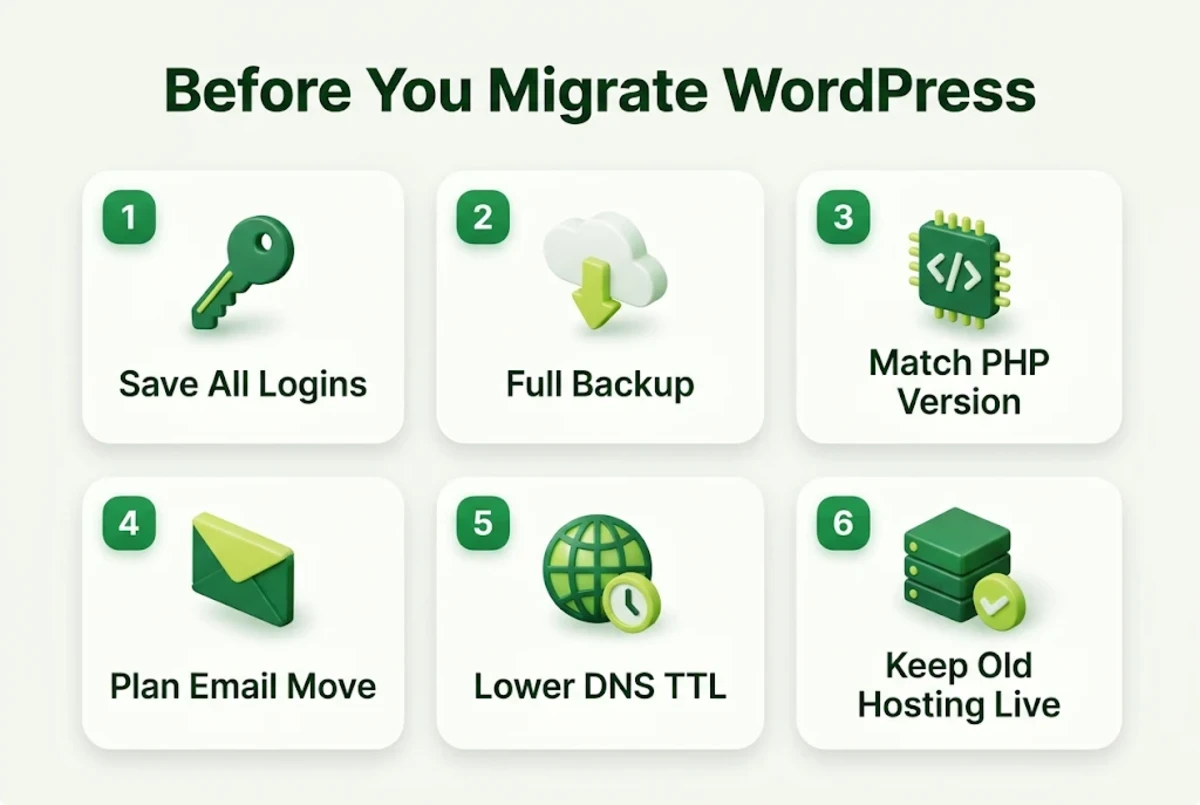
Ten minutes of preparation saves hours of fixing later. Before you migrate WordPress to a new host, run through this list:
- Write down your logins. You need access to your old hosting panel, the new hosting panel, your WordPress admin and your domain registrar (where your DNS is managed).
- Check your site size. Note the size of the wp-content folder and the database. A 500 MB site moves very differently from a 20 GB store.
- Note your PHP version. Set the same PHP version (or a newer one your plugins support) on the new server so nothing breaks.
- Check where your email lives. If your business email runs on the old hosting, plan how to move it too. Otherwise mail can stop when you change DNS.
- Update WordPress, themes and plugins. Moving an up-to-date site causes fewer errors. Remove plugins you no longer use.
- Pick a quiet time. For most UAE businesses that is late evening or Friday morning, when traffic is lowest.
- Don’t cancel the old hosting yet. Keep it running until the new site has worked for at least a few days.
3 Ways to Move a WordPress Site
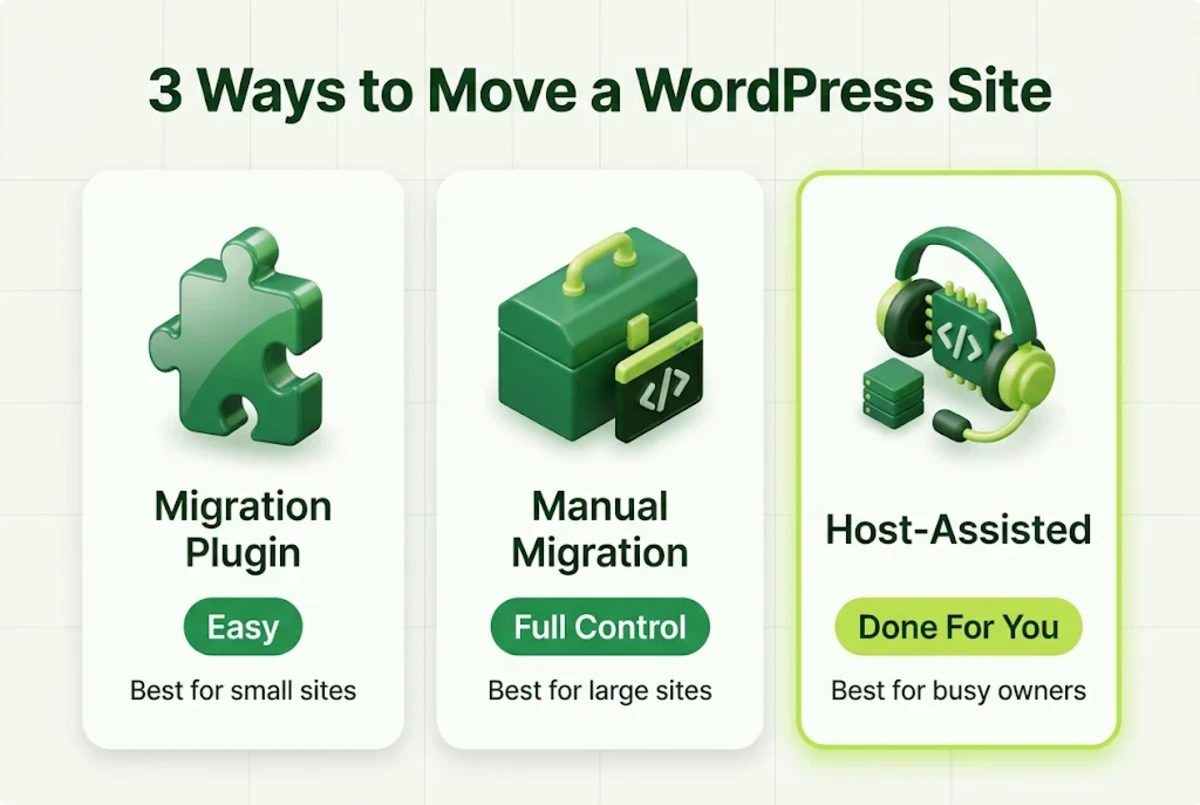
There are three common ways to migrate WordPress to a new host. Which one you choose depends on your site size, your comfort with technical tasks and your time.
| Method | Best for | Skill needed | Watch out for |
|---|---|---|---|
| Migration plugin | Small and medium sites | Low | Upload size limits on large sites |
| Manual migration | Large sites, developers | Medium to high | Mistakes in the database or wp-config.php |
| Host-assisted migration | Busy owners, online stores | None | Check what the host includes for free |
Option 1: Use a WordPress migration plugin
Plugins such as Duplicator, All-in-One WP Migration or Migrate Guru package your files and database into one archive, then rebuild the site on the new server. For a typical business website this is the quickest route. The main limit is size: free versions often cap the archive size, so bigger sites may need a paid version or the manual method.
Option 2: Move WordPress manually
A manual WordPress migration means copying files over FTP, SFTP or the file manager, exporting the database with phpMyAdmin and importing it on the new server. It takes longer but gives you full control, and it works for sites of any size. Developers with SSH access can speed this up with WP-CLI.
Option 3: Let your new host do it
Many hosts offer a free WordPress migration for new customers, which is the easiest way to move a WordPress site without touching a single file yourself. You share your old hosting details, their team copies the site, tests it and tells you when to change DNS. This is the safest option if you run a store or simply don’t have the time.
How to Migrate WordPress to a New Host: 9 Steps
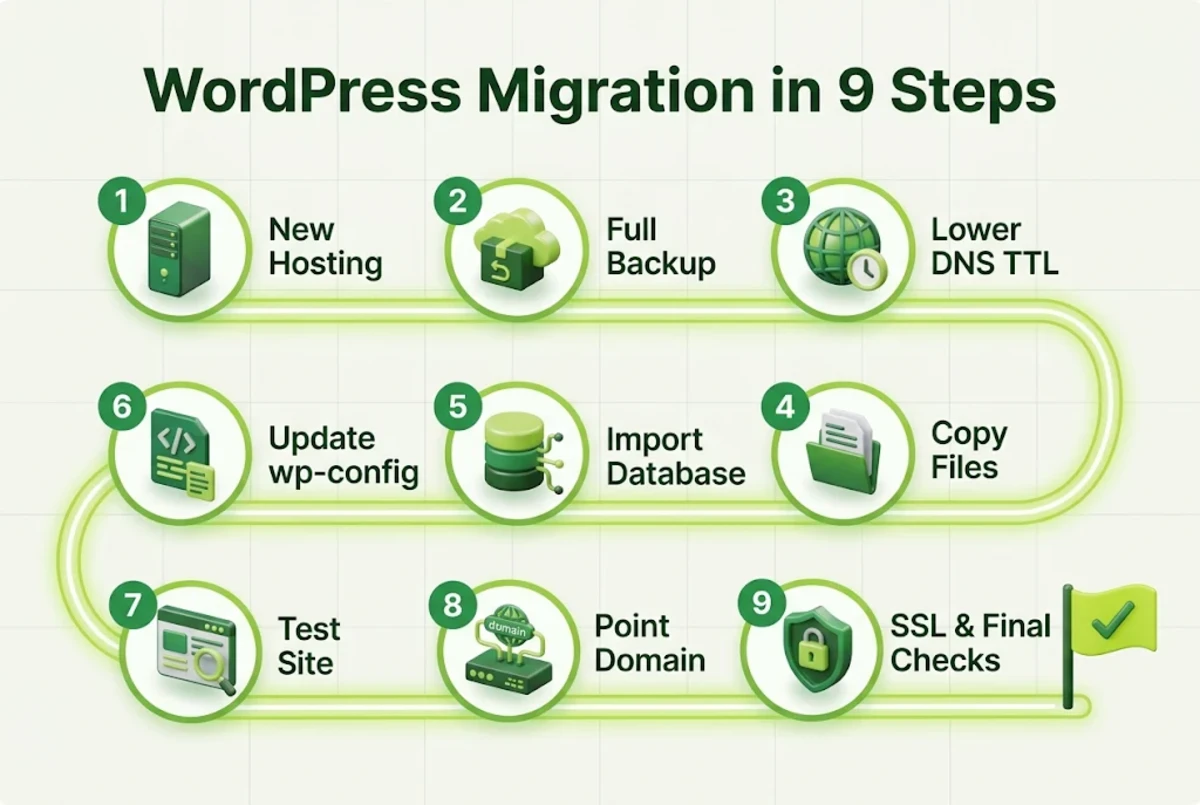
These steps follow the manual method, because it shows exactly what happens during any move. If you use a plugin, it does steps 4 to 6 for you, but the steps before and after stay the same.
Step 1: Set up your new hosting account
Choose a plan that fits your site today with some room to grow. A standard business site runs well on Linux shared hosting or managed WordPress hosting. Online stores do better on ecommerce hosting, and busy or custom sites may need a VPS. Not sure which to pick? Our guide to the best web hosting for WordPress websites in the UAE compares the options.
Step 2: Take a full backup of your site
Never migrate WordPress to a new host without a fresh backup. Back up two things: your files (the whole WordPress folder, especially wp-content) and your database. Download both to your computer. Even if you use a plugin, keep this separate copy. If anything goes wrong, you can restore the original site in minutes.
Step 3: Lower your DNS TTL
TTL (time to live) tells the internet how long to remember where your domain points. If it is set to 24 hours, some visitors may keep reaching the old server for a full day after you switch. A day or two before the move, lower the TTL on your A record to 300 seconds (5 minutes) at your DNS provider. Your later switch will then spread much faster.
Step 4: Copy your WordPress files to the new server
Upload the files from your backup to the new hosting account, usually into the public_html folder. For large sites, upload a single zip file and extract it on the server. That is much faster and more reliable than uploading thousands of small files one by one.
Step 5: Create a new database and import your data
In the new hosting panel, create a MySQL database and a database user, and give that user full rights on the database. Then open phpMyAdmin, select the new database and import the .sql file from your backup. Large databases may time out in the browser; in that case, ask support to import it or use the command line.
Step 6: Update wp-config.php
Open the wp-config.php file on the new server and change these four lines to match the new database:
- DB_NAME: the new database name
- DB_USER: the new database user
- DB_PASSWORD: that user’s password
- DB_HOST: usually “localhost”, but check your host’s details
If you are also changing your domain name, run a search and replace on the database to update old URLs. The WP-CLI search-replace command handles this safely, including serialized data that a plain text replace would break.
Step 7: Test the site before changing DNS
This is the step most people skip, and it is the one that prevents downtime. Preview the site on the new server before the public sees it. You can do this by editing the hosts file on your computer to point your domain to the new server’s IP address, or by using a temporary URL from your host. Click through key pages, log in to the admin, submit a contact form and, for stores, place a test order.
Step 8: Point your domain to the new host
When everything works, update DNS. Either change your domain’s nameservers to the new host, or change the A record to the new server’s IP. Because you lowered the TTL in Step 3, most visitors will reach the new server within minutes, though full DNS propagation can still take a few hours in some places.
Step 9: Install SSL and run final checks
Issue a free SSL certificate on the new server so the site loads over HTTPS without warnings. Our guide to SSL certificates for UAE websites explains why this matters for trust and rankings. Then go to Settings > Permalinks in WordPress and click Save once. This rebuilds your URL rules and fixes most “page not found” errors after a move.
How to Avoid Downtime During a WordPress Migration
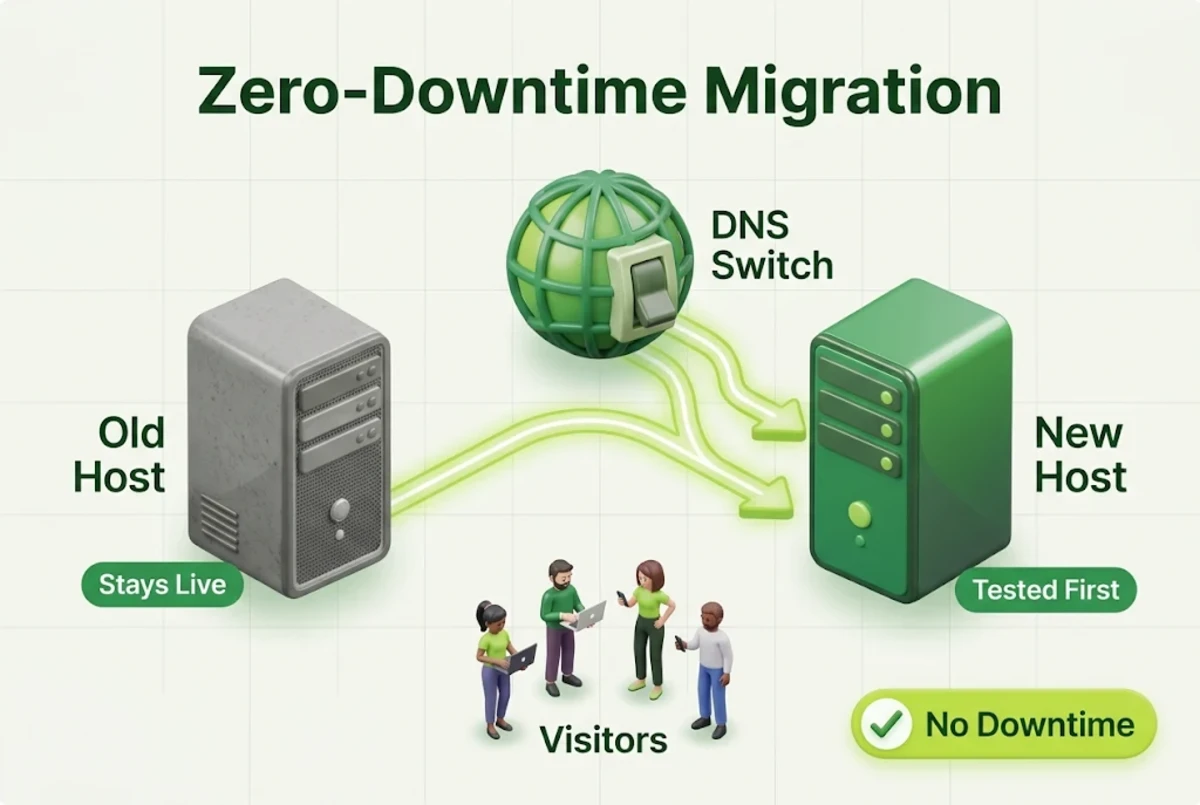
You can migrate WordPress to a new host and keep the site online the whole time. A WordPress migration without downtime is very possible. The trick is simple: both servers run the same site at the same time, and you only switch traffic once the new one is proven to work.
- Keep the old site live until DNS has fully moved. Visitors who still reach the old server see a working site.
- Freeze changes during the move. Don’t publish posts or edit pages while the migration runs, or those changes may be lost.
- Handle online orders carefully. For WooCommerce stores, move at the quietest time and copy the database one last time just before the DNS switch, so no recent orders are left behind.
- Protect your email. If you change nameservers, copy your MX, SPF and other email records to the new DNS zone first. Missing MX records are the most common reason email stops after a move.
- Avoid peak hours. We explain how timing affects visitors in our article on website downtime during peak hours.
Agencies moving many client sites at once can follow our separate guide on migrating websites to reseller hosting without downtime.
After the Move: Post-Migration Checklist
Once you migrate WordPress to a new host and traffic reaches the new server, spend half an hour checking that everything works as before:
| Check | What to look for |
|---|---|
| Pages and posts | All pages open, images load, no broken layouts |
| HTTPS | Padlock shows on every page, no mixed content warnings |
| Forms | Contact and quote forms send emails that actually arrive |
| Store | Cart, checkout, payment gateway and order emails work |
| You can send and receive on your business addresses | |
| Speed | Run a speed test and compare with your old results |
| Search Console | No new crawl errors over the next week |
| Backups | Automatic backups are running on the new host |
Keep the old hosting for about a week. When you are sure nothing is missing, download a final backup from it and then cancel.
Common WordPress Migration Errors and Fixes
Even a careful move can throw an error or two. Here are the ones we see most often and how to fix them:
- “Error establishing a database connection.” The details in wp-config.php don’t match the new database. Check the name, user, password and host, and make sure the user has rights on the database.
- Home page works but other pages show 404. Go to Settings > Permalinks and click Save. If it continues, check that the .htaccess file was copied.
- White screen or 500 error. Usually a plugin or PHP version clash. Rename the plugins folder to turn all plugins off, then turn them back on one at a time.
- Mixed content warnings. Some images or scripts still load over http. Update the site URL to https and replace old http links in the database.
- Images missing. The uploads folder didn’t copy fully. Upload wp-content/uploads again.
- Emails stopped arriving. MX records were not added at the new DNS provider. Add them and allow time to update.
Choosing a host with good security and daily backups makes recovering from any of these much easier. See the essential security features to look for in a web host.
Free WordPress Migration with KhaleejHost
If you would rather not do any of this yourself, you don’t have to. KhaleejHost hosting plans include free site migrations through our Migrator plugin, and our support team can help with eligible WordPress moves. Here is what you get after the move:
- Fast NVMe storage and multi-level caching for quicker page loads
- Free SSL and daily backups, kept for 7 days
- Free email migration, so your business inbox moves with your site
- Developer tools such as SSH, WP-CLI and Git, plus a choice of PHP versions
- 99.9% uptime guarantee and 24/7 UAE-based support
For WordPress sites that you want fully looked after, our managed WordPress hosting also handles updates, backups and security for you. Growing past shared hosting? Read when you should upgrade to VPS hosting and how much RAM and CPU your VPS needs before you choose.
Frequently Asked Questions
How long does it take to migrate WordPress to a new host?
To migrate WordPress to a new host, a small business website usually takes 30 minutes to 2 hours. Large sites or busy WooCommerce stores can take several hours, mostly because of file transfer and database import time. DNS changes can take a few more hours to reach every visitor.
Will my website go down during a WordPress migration?
Not if you keep the old site live, test the new one before changing DNS and lower your TTL in advance. Visitors move to the new server gradually and see a working site the whole time.
Will migrating WordPress affect my SEO?
If your domain and URLs stay the same, your rankings should not drop. A faster new host can even help. Problems only appear when pages break, URLs change without redirects or the site goes offline for long periods.
Can I migrate WordPress without a plugin?
Yes. You can copy files over FTP or the file manager, export the database with phpMyAdmin, import it on the new server and update wp-config.php. This manual method works for sites of any size.
What is the best plugin to move a WordPress site?
Duplicator, All-in-One WP Migration and Migrate Guru are popular choices. The best one depends on your site size and whether your new host offers its own migration tool.
Do I need to move my domain when I change hosting?
No. Your domain can stay with its current registrar. You only need to point it to the new host by changing the nameservers or the A record.
What happens to my email when I migrate WordPress?
If your email runs on your old hosting, it needs to move too, and your MX records must be set up at the new DNS provider. If you use a separate service such as Google Workspace or Titan, just copy its DNS records across.
Does KhaleejHost migrate WordPress sites for free?
Yes. KhaleejHost plans include free site migrations through our Migrator plugin, and our support team can help with eligible WordPress moves. Contact us with your current hosting details to confirm the scope.
Conclusion
Learning how to migrate WordPress to a new host comes down to order: back up first, lower your TTL, copy the files and database, update wp-config.php, test on the new server, then switch DNS and check everything once more. Do it in that sequence and your visitors, your rankings and your inbox stay safe.
And if you’d rather spend that time on your business, let a team that does this every day handle it for you.
Move Your WordPress Site to KhaleejHost for Free
Faster UAE hosting, free SSL, daily backups and a free migration handled with care. No downtime, no stress.