


Quick answer: Why is my WordPress website slow? In most cases it comes down to one of five things: slow or overloaded hosting, no caching, large uncompressed images, too many or badly coded plugins, or an outdated PHP version. Start by testing your speed, then fix the biggest problem first. Good hosting with built-in caching and fast NVMe storage solves more speed issues than any single plugin.
A slow website costs you money quietly. Visitors leave before the page loads, contact forms go unsent and carts get abandoned. Google notices too, because page experience is part of how it ranks sites.
At KhaleejHost we look at slow WordPress sites for UAE businesses all the time, and the same causes show up again and again. This guide answers the question “why is my WordPress website slow?” in plain language, shows you how to find the real cause, and gives you fixes you can apply today.
Table of Contents
- How Slow Is Too Slow?
- How to Test Your WordPress Site Speed
- Why Is My WordPress Website Slow? 10 Common Causes
- How to Find Out Why Your WordPress Website Is Slow
- Quick Fixes to Speed Up WordPress
- When Hosting Is the Real Problem
- Why WooCommerce Stores Slow Down
- How to Keep Your WordPress Site Fast
- Frequently Asked Questions
- Conclusion
How Slow Is Too Slow?
As a simple rule, your main pages should load in under 2.5 seconds on a normal mobile connection. Past 3 seconds, a large share of visitors give up and go back to Google. We explain the business side of this in our guide on why website speed matters in the UAE.
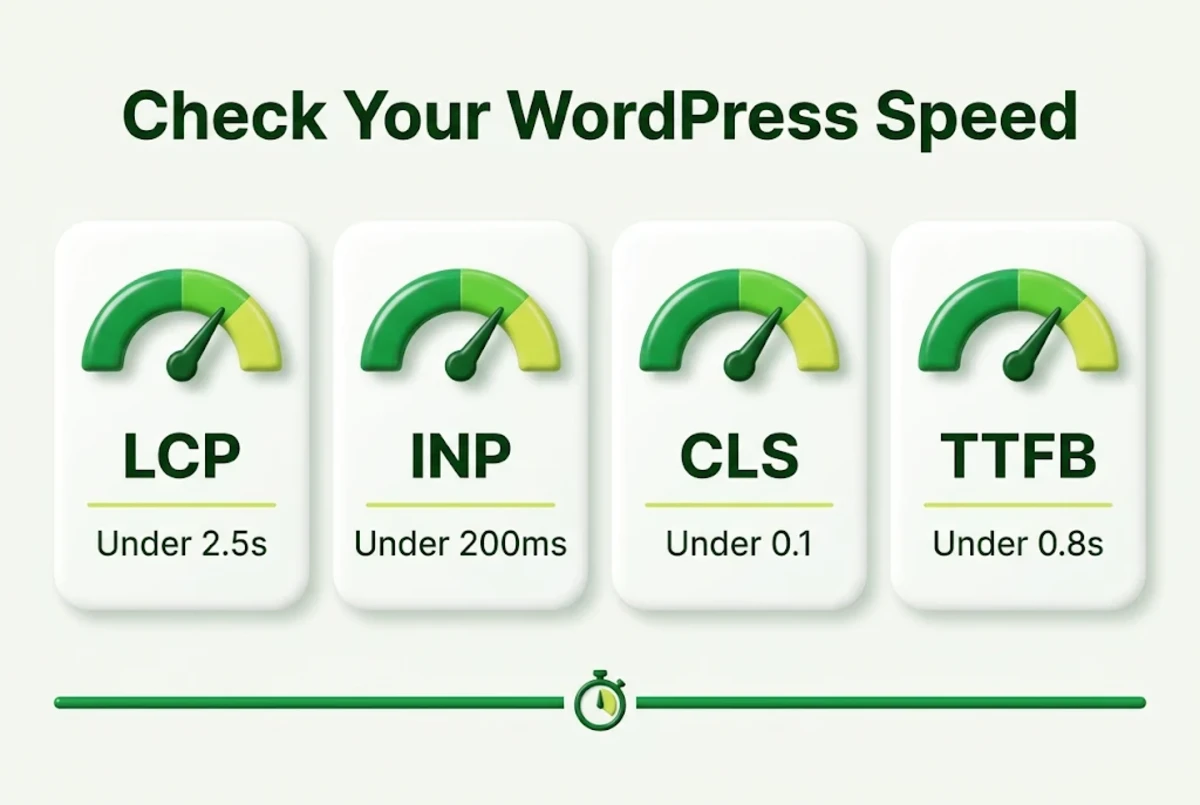
Google measures page experience with three Core Web Vitals:
| Metric | What it measures | Good score |
|---|---|---|
| LCP (Largest Contentful Paint) | How fast the main content appears | 2.5 seconds or less |
| INP (Interaction to Next Paint) | How quickly the page reacts to taps and clicks | 200 milliseconds or less |
| CLS (Cumulative Layout Shift) | How much the layout jumps while loading | 0.1 or less |
One more number matters a lot for WordPress: TTFB (Time to First Byte). It shows how long your server takes to start sending the page. If TTFB is above about 0.8 seconds, the problem usually sits on the server side, not in your design.
How to Test Your WordPress Site Speed
The quickest way to answer “why is my WordPress website slow?” is to measure. Before you change anything, test. Guessing leads to installing random plugins, which often makes things worse.
- Run Google PageSpeed Insights. Test your home page and one important inner page, such as a service page or product page. Look at the mobile score first. PageSpeed Insights is free and shows both lab and real-user data.
- Check the waterfall. A tool like GTmetrix shows every file the page loads and how long each one takes. Big images, slow scripts and a long wait for the first byte stand out quickly.
- Test from the right place. If your customers are in the UAE, test from a nearby location. A site hosted far away can look fine in a European test and still feel slow in Dubai.
- Test logged out. Logged-in pages skip most caching, so they are always slower than what visitors see.
- Write down your numbers. Note load time, TTFB and the Core Web Vitals so you can compare after each fix.
Why Is My WordPress Website Slow? 10 Common Causes
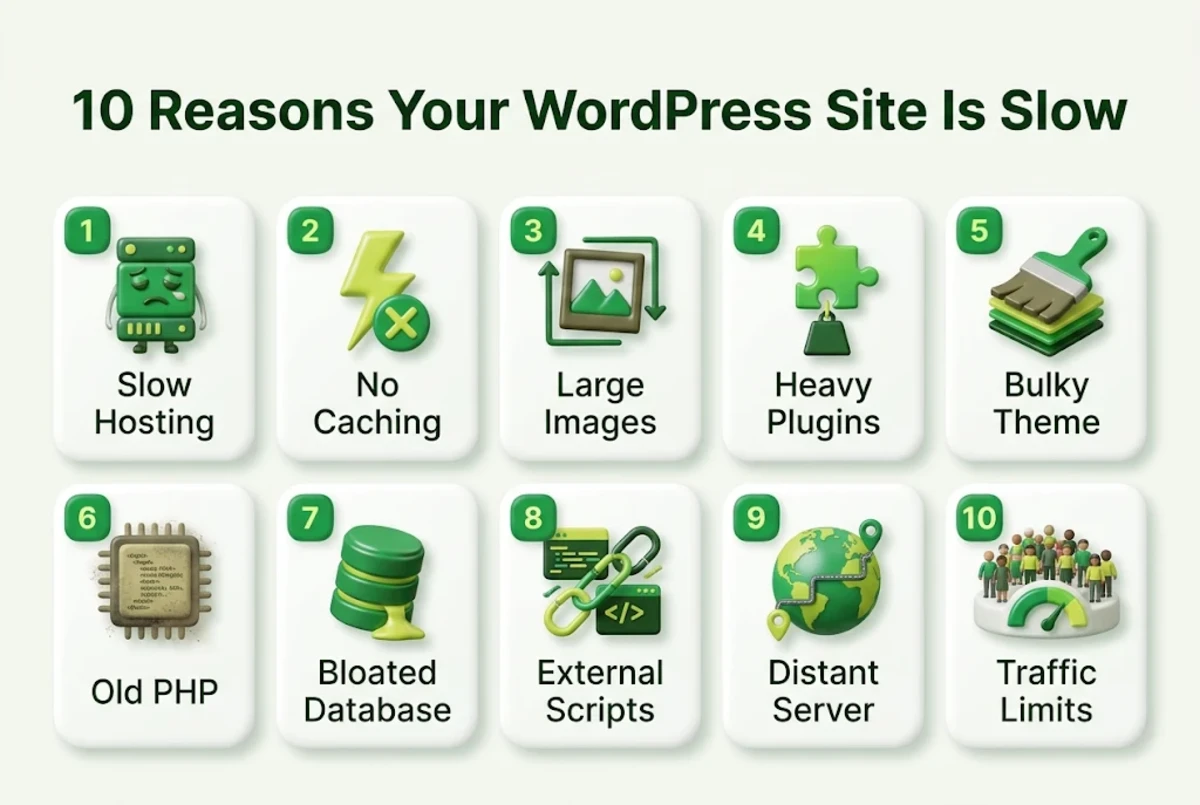
Here are the causes we find most often when we look at a slow WordPress site, roughly in order of how much they hurt. If you keep asking yourself why is my WordPress website slow, one of these is almost certainly the answer.
1. Slow or overloaded hosting
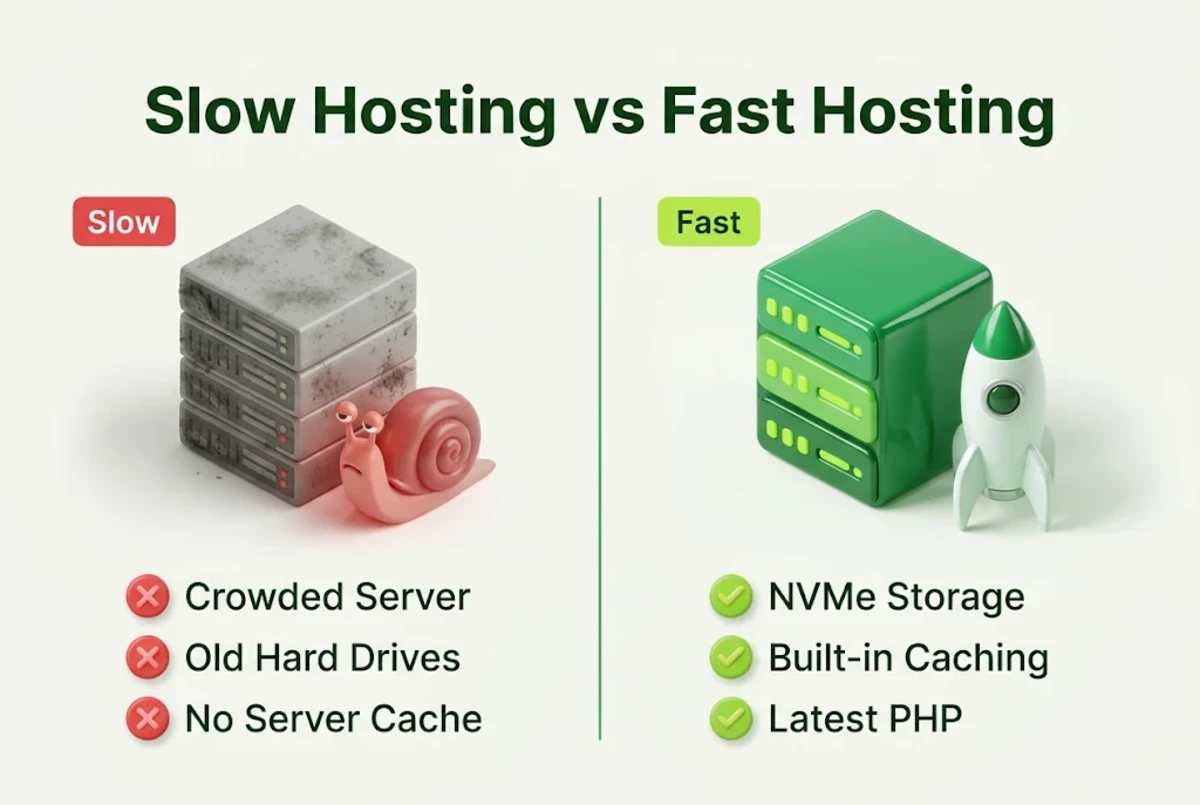
Cheap shared servers often pack hundreds of sites onto one machine. When a neighbour gets busy, your site slows down too. Old hard drives, limited PHP workers and no server-level caching add to the delay. If your TTFB is high even on a simple page, hosting is the first suspect. Our post on shared hosting problems lists the warning signs.
2. No caching
Without caching, WordPress builds every page from scratch for every visitor: it runs PHP, queries the database and assembles the HTML. Page caching saves a ready-made copy and serves it instantly. Object caching keeps frequent database results in memory. A site with no caching at all is almost always slow.
3. Large, uncompressed images
A single 4 MB photo straight from a phone can take longer to load than the rest of the page combined. Images should be resized to the size they are shown at, compressed, and served in a modern format such as WebP.
4. Too many plugins, or a few bad ones
The number of plugins matters less than what they do. One poorly coded plugin that loads scripts on every page or runs heavy database queries can slow the whole site. Sliders, page-view counters, social feeds and “all-in-one” toolkits are common offenders.
5. A heavy theme or page builder
Multipurpose themes and page builders add a lot of CSS and JavaScript, even on pages that don’t use those features. They can still be fast, but they need caching and careful setup.
6. Outdated PHP version
Newer PHP versions run WordPress noticeably faster than old ones. Many slow sites are still on a PHP version that no longer gets updates. Check your version in Tools > Site Health.
7. A bloated database
Years of post revisions, spam comments, expired transients and leftover tables from deleted plugins make the database bigger and slower. WooCommerce stores feel this most.
8. Too many external scripts
Chat widgets, tracking pixels, ad scripts, embedded maps and video players all load from other servers. Each one adds requests and can block the page from showing.
9. Server far from your visitors
Data has to travel. If your audience is in the UAE but your server is in another continent, every request carries extra delay. A server closer to your customers, or a CDN, cuts that distance.
10. Not enough resources for your traffic
A site that grows from a few hundred to thousands of daily visitors can simply outgrow its plan. If the site is quick at night and slow during the day, you are probably hitting your resource limits. Our guide on choosing hosting based on traffic helps you size it.
How to Find Out Why Your WordPress Website Is Slow in 15 Minutes
Knowing the common causes is useful, but you still need to find the one that applies to you. If you keep asking “why is my WordPress website slow?” and the list above feels too broad, run this short check. It narrows the problem down without any special tools.
- Look at TTFB first. Run PageSpeed Insights and check the server response time. If it is high on a simple page, the delay starts on the server before the browser receives anything. That points to hosting, missing page caching or a slow database.
- Check the largest files. In the GTmetrix waterfall, sort by size. If the biggest items are images over 300 KB, image compression will give you a quick win.
- Count the external requests. Look for files loading from other domains, such as chat tools, fonts, maps and tracking scripts. If there are many, they are probably slowing down the first view of the page.
- Test with a default theme. On a staging copy, switch to a default WordPress theme and test again. If the site becomes much faster, your theme or page builder is part of the problem.
- Turn plugins off one at a time. On the same staging copy, turn off plugins one by one and test after each. When speed jumps, you have found the plugin that is slowing the site.
- Check Site Health. Go to Tools > Site Health. WordPress flags old PHP versions, missing object caching and other performance issues there.
- Compare busy and quiet hours. Test once in the morning and once at your busiest time. A big difference usually means the server runs out of resources under load.
Never run plugin and theme tests on your live site during business hours. Most hosting panels let you create a staging copy in a few clicks, and if yours doesn’t, that alone tells you something about your host.
By the end of this check, you will have a clear answer to why your WordPress website is slow, and you will know whether to start with images, plugins, scripts or the server itself.
Quick Fixes to Speed Up WordPress
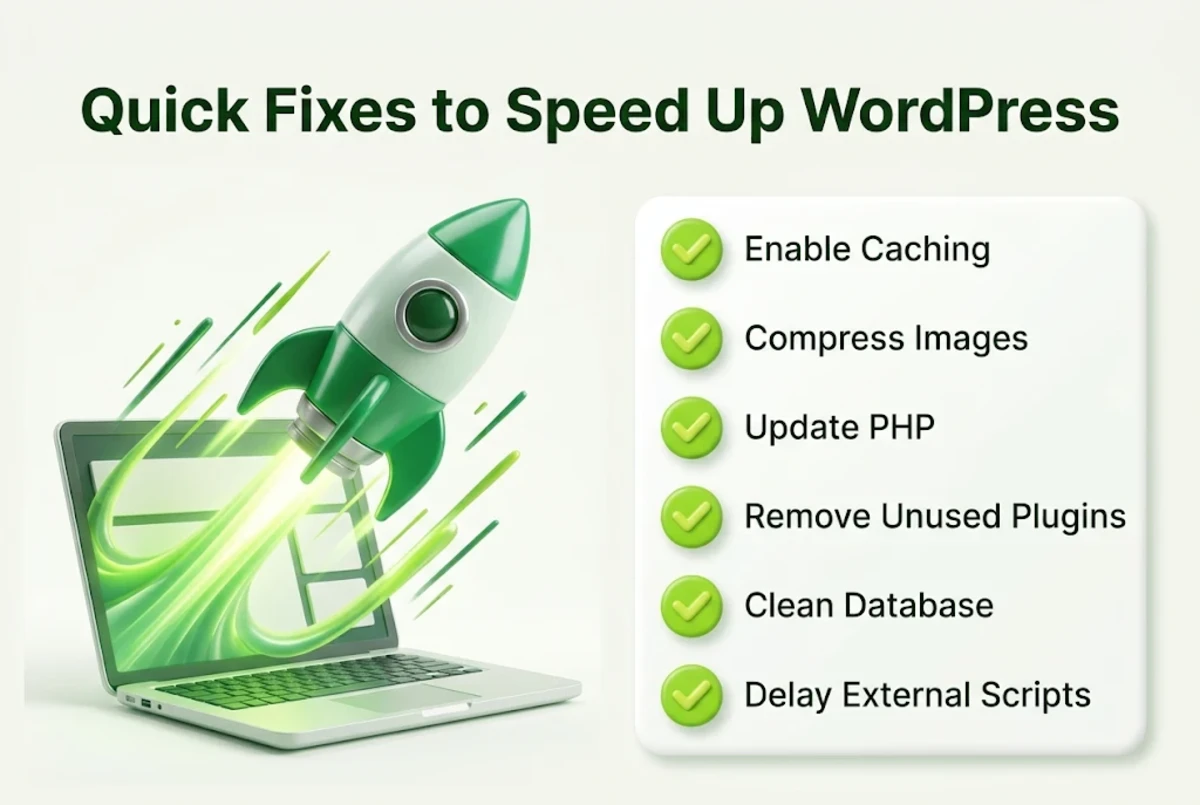
Once you know why your WordPress website is slow, the fix is usually clear, and each one improves overall WordPress performance. This table matches each problem to the first thing to try:
| Problem | First fix | Effort |
|---|---|---|
| No caching | Turn on page and object caching | Low |
| Large images | Resize, compress and convert to WebP; enable lazy loading | Low |
| Old PHP | Switch to a current PHP version in your hosting panel | Low |
| Plugin bloat | Remove unused plugins, replace heavy ones | Medium |
| Bloated database | Clean revisions, spam and transients; limit revisions | Medium |
| External scripts | Remove what you don’t use, delay the rest | Medium |
| Slow hosting / far server | Move to faster, local hosting | Medium |
A few more tips that help almost every site:
- Back up before you change anything. Then make one change at a time and test again.
- Use one caching plugin only. Two caching plugins fighting each other can break pages or slow them down.
- Keep WordPress, themes and plugins updated. Updates often include performance improvements.
- Check mobile separately. If the site is fine on desktop but crawls on phones, read our guide to a website slow on mobile.
When Hosting Is the Real Problem
Sometimes the honest answer to “why is my WordPress website slow?” is the server. You can compress every image and remove half your plugins, and the site will still feel slow if the server itself is slow. Signs that your hosting is the bottleneck:
- TTFB stays high (over about 0.8 seconds) even on a simple page with caching on
- Speed changes a lot by time of day
- Your admin dashboard is slow even with few plugins
- You see “resource limit reached” or 503 errors
- Your host offers no server-level caching and still uses old hard drives
If that sounds like your site, a better host is the fastest fix. Look for NVMe storage, server-level caching, a choice of PHP versions and servers close to your visitors. Our managed WordPress hosting includes fast NVMe storage, multi-level page and object caching, Khaleej Speed optimization and per-site PHP version control, with updates and daily backups handled for you. For a wider comparison, see the best web hosting for WordPress websites in the UAE.
Worried about moving? Our step-by-step guide on how to migrate WordPress to a new host shows how to switch without downtime, and our plans include free site migrations.
Why WooCommerce Stores Slow Down
Online stores have extra reasons to be slow. Cart, checkout and account pages can’t be fully cached, because they change for each shopper. Product filters, stock checks and order data put more load on the database. Payment and shipping plugins add their own scripts.
For a store, focus on fast hosting with object caching, a clean database, optimised product images and as few extensions as you can manage. If your store is growing, ecommerce hosting or a VPS gives you more room. Not sure what size you need? Read how much RAM and CPU your VPS needs.
How to Keep Your WordPress Site Fast
Speed isn’t a one-time job, and good WordPress performance needs regular care. Sites get slower as you add content, plugins and scripts. A simple routine keeps your WordPress site speed where it should be:
- Monthly: run PageSpeed Insights on your key pages and compare with your last result.
- Every upload: resize and compress images before they go live.
- Every new plugin: test speed before and after installing it.
- Every quarter: clean the database and remove plugins you no longer use.
- Every year: check that your plan still fits your traffic. See when you should upgrade to VPS hosting.
Frequently Asked Questions
Why is my WordPress website slow all of a sudden?
If you’re wondering why is my WordPress website slow when it was fine last week, look for a recent change. A sudden slowdown usually follows one: a new plugin or theme update, a traffic spike, a full disk, or a problem on the server. Check what changed recently, test with plugins turned off one by one, and ask your host whether the server is under heavy load.
Why is my WordPress admin dashboard slow?
The dashboard isn’t cached, so slow hosting, heavy plugins and a bloated database show up there first. Plugins that run background checks or load dashboard widgets are common causes.
Do too many plugins slow down WordPress?
Not by number alone. Ten well-coded plugins can be faster than one badly coded one. What matters is how much code each plugin loads and how many database queries it runs.
Does hosting affect WordPress speed?
Yes, a lot. Hosting decides how fast your server responds (TTFB), how many visitors it can handle at once and whether you get server-level caching. No plugin can fully make up for a slow server.
What is a good load time for a WordPress site?
Aim for the main content to appear within 2.5 seconds on mobile, with a server response time under about 0.8 seconds. Faster is better, especially for online stores.
Will a caching plugin fix a slow WordPress site?
Caching often gives the biggest single improvement, but it can’t fix everything. Large images, heavy scripts and slow hosting still need their own fixes.
Does a slow website affect SEO?
Yes. Google uses page experience signals, including Core Web Vitals, as part of ranking. A slow site also loses visitors before they engage, which hurts conversions.
Can KhaleejHost help speed up my WordPress website?
Yes. Our managed WordPress hosting includes NVMe storage, multi-level caching and Khaleej Speed optimization, and we offer free site migrations so you can move your existing site across. Contact our team for advice on your site.
Conclusion
So, why is my WordPress website slow? Usually it is a mix of slow hosting, missing caching, heavy images and too many scripts. Test first, fix the biggest problem, then work down the list one change at a time. Most sites get much faster with just the first three fixes.
If your tests point to the server, don’t spend weeks fighting it. Move to hosting built for WordPress and let the server do the heavy lifting.
Make Your WordPress Site Fast Again
Managed WordPress hosting with NVMe storage, built-in caching, daily backups and free site migration. Built for UAE businesses.