



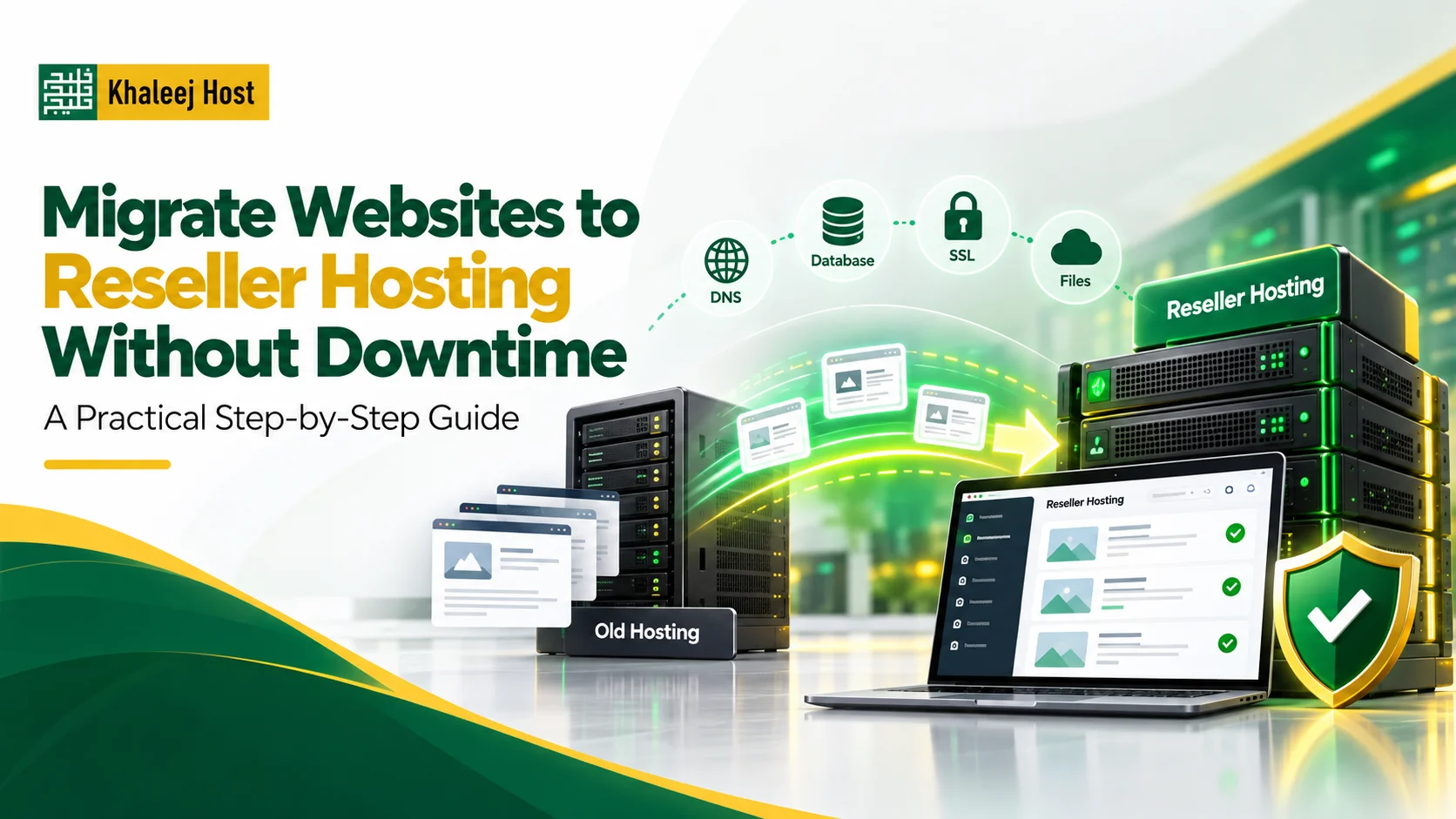
Moving a client website to reseller hosting does not have to mean taking the website offline.
With proper planning, you can move website files, databases, email accounts, SSL, and DNS records while keeping the existing website accessible during most of the migration.
The key is to prepare the new hosting environment before changing DNS.
A rushed migration can cause broken websites, missing emails, database errors, SSL warnings, or unexpected downtime. A planned migration gives you time to test everything before visitors are sent to the new server.
This guide explains how to migrate websites to reseller hosting with minimal disruption and what you should check before, during, and after the move.
What Does Website Migration to Reseller Hosting Involve?
Website migration means moving a website from one hosting environment to another.
Depending on the website, this can involve:
- Website files
- Databases
- Email accounts
- DNS records
- SSL certificates
- Domain configuration
- Cron jobs
- Redirects
- PHP versions
- Website settings
- Third-party integrations
The exact process depends on the website platform and current hosting provider.
A simple static website may require only files and DNS changes.
A WordPress website usually requires both website files and its database.
An ecommerce website can require additional care because orders, customer accounts, inventory, and other data may continue changing during the migration.
Can You Really Migrate a Website Without Downtime?
In many cases, you can achieve little or no noticeable downtime by using a controlled migration process.
However, “zero downtime” should not be treated as an automatic guarantee.
The result depends on:
- Website type
- DNS configuration
- Database activity
- Email setup
- Hosting environments
- Migration method
- SSL configuration
- DNS propagation
- Quality of testing
For an actively changing website, especially an ecommerce site, you also need to consider data created between the initial migration and the final DNS switch.
The goal is to keep the old website available until the new environment is ready to receive traffic.
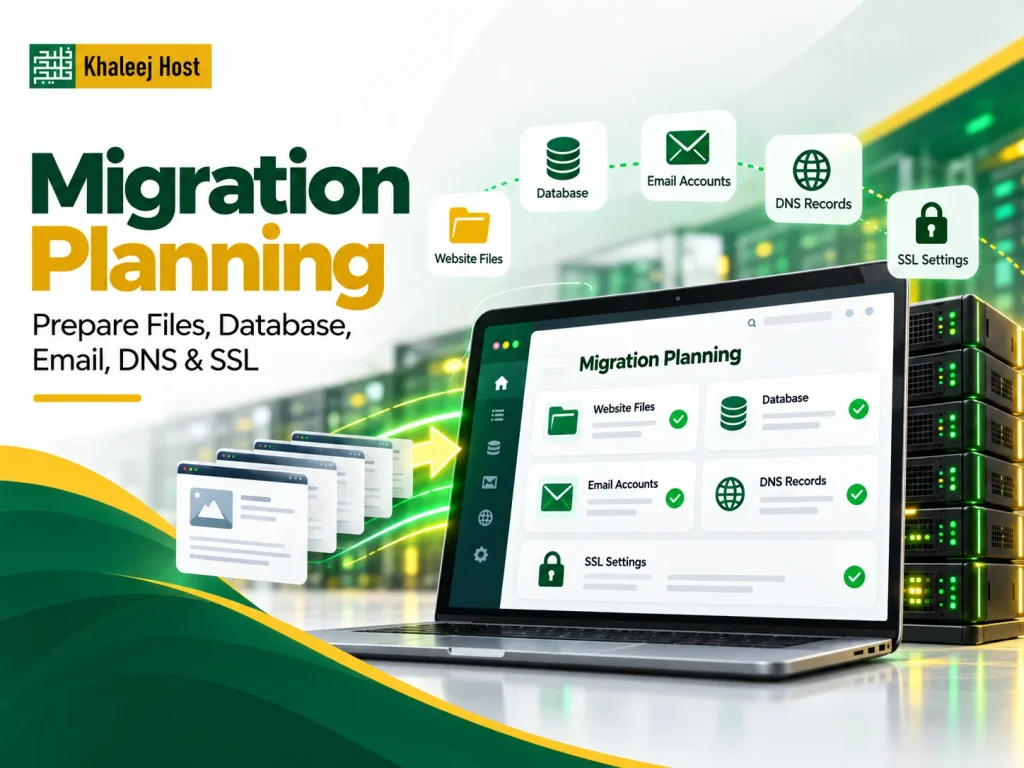
Before You Start: Create a Migration Plan
Do not begin by immediately changing nameservers.
First, document the existing website.
Record:
- Current hosting provider
- Domain registrar
- Nameservers
- DNS records
- Website platform
- PHP version
- Database type
- Database name
- Email accounts
- SSL configuration
- Cron jobs
- Redirects
- Subdomains
- FTP/SFTP accounts
- Third-party integrations
- Current resource usage
This information gives you a reference point if something behaves differently after the move.
If you are choosing a new reseller provider at the same time, our guide on How to Choose a Reseller Hosting Provider in UAE explains what to check before committing to a provider.
Step 1: Prepare the New Reseller Hosting Account
Create the new hosting account before changing the domain’s DNS.
In a typical reseller environment, you may use WHM to create a separate account for the client.
Set up:
- Domain name
- Username
- Password
- Hosting package
- Storage limits
- Database access
- Email accounts
- Required PHP version
- SSL
- Other required services
Do not point the live domain to the new server yet.
The old website should remain available while you prepare and test the new environment.
Step 2: Check the New Server Environment
Before moving the website, compare the old and new hosting environments.
Check:
- PHP version
- Database version
- Web server configuration
- PHP extensions
- Memory limits
- Upload limits
- Maximum execution time
- Cron support
- SSL support
- Email configuration
This is particularly important for WordPress and custom applications.
A website that works correctly on the old server may produce errors if the new environment uses incompatible software versions.
Step 3: Create a Complete Backup
Create a full backup of the existing website before migration.
For a typical website, this should include:
- Website files
- Database
- Configuration files
- Email data where applicable
- DNS information
- SSL-related configuration where required
Keep the original backup until you have confirmed that the new website is working correctly.
Do not delete the old hosting account immediately after migration.
It should remain available as a fallback during the transition period.
For broader backup planning, see Reseller Hosting Backup and Disaster Recovery: What You Need to Know.
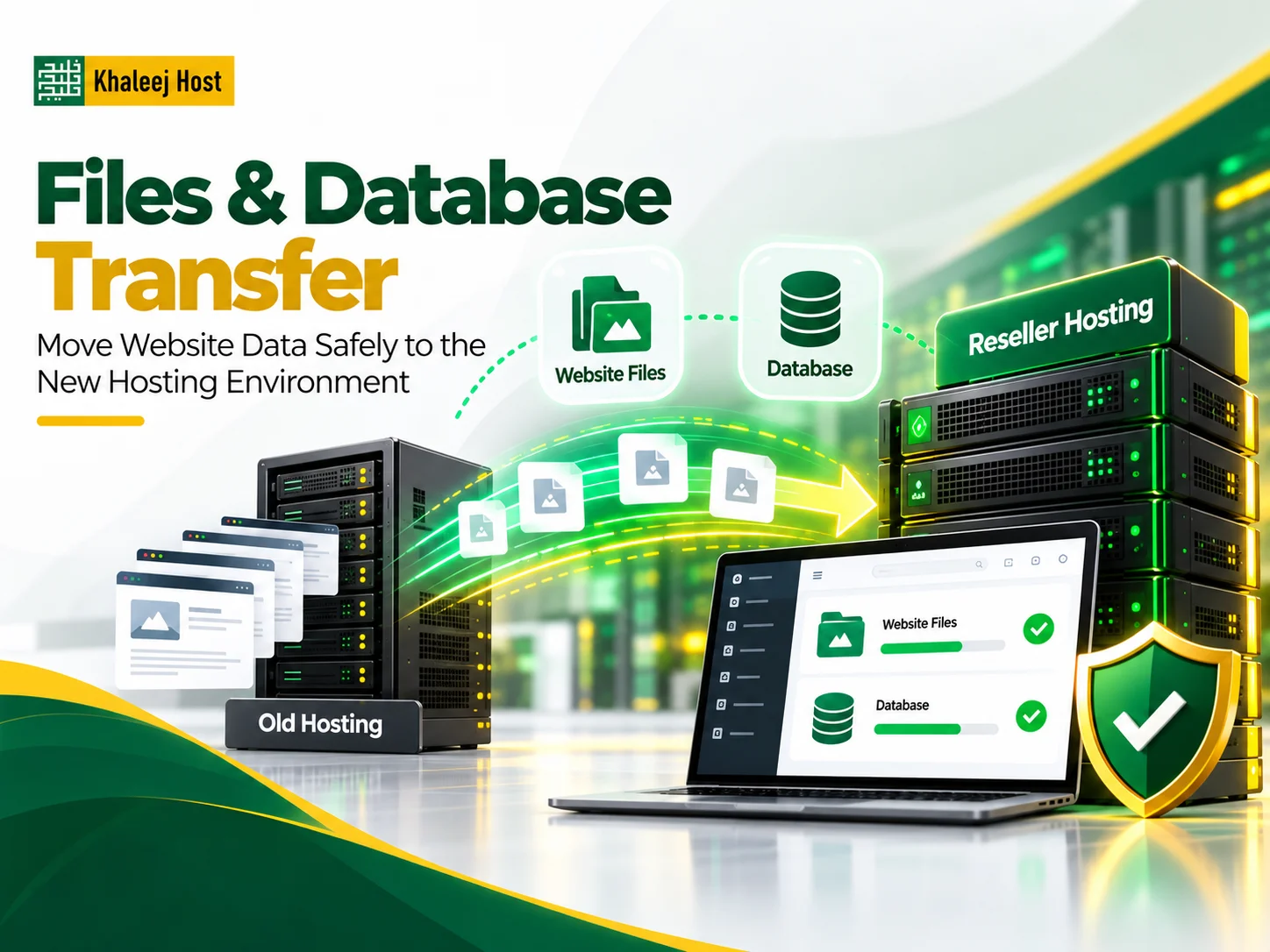
Step 4: Transfer the Website Files
Move the website files from the old hosting environment to the new reseller account.
Depending on your setup, you may use:
- cPanel backup restoration
- FTP
- SFTP
- SSH
- Hosting migration tools
- Manual file transfer
For cPanel-to-cPanel migrations, account-level backup and restoration can simplify the process when supported.
After transferring the files, check the directory structure carefully.
Make sure important files such as configuration files and hidden files have been transferred correctly.
For WordPress, check that the correct wp-config.php file and required WordPress directories are present.
Step 5: Move the Database
If the website uses a database, create the required database and database user on the new hosting account.
Then import the database backup.
For WordPress, this typically includes:
- Creating a new database
- Creating a database user
- Assigning the required permissions
- Importing the database
- Updating database credentials in the configuration file
Check the database connection before moving forward.
A database error after DNS changes can make the website appear broken even when the files were transferred correctly.
Step 6: Update Configuration Settings
Some websites contain configuration files that reference the old server, database credentials, paths, or other environment-specific settings.
Check for:
- Database credentials
- File paths
- API keys
- SMTP settings
- Environment variables
- Cache configuration
- Server-specific settings
For custom applications, ask the developer to review the configuration before the final DNS switch.
Step 7: Set Up Email Before Changing DNS
Email is one of the easiest parts of a migration to overlook.
If the client’s domain uses email, document the existing email setup before changing nameservers.
Check:
- Email accounts
- MX records
- SPF
- DKIM
- DMARC
- Mailbox storage
- Forwarders
- Autoresponders
If you change DNS without correctly preparing email, the website may work while business emails stop arriving.
That can be more disruptive than a short website interruption.
If email is hosted separately from the website, make sure the migration does not accidentally replace the existing MX records.
Step 8: Set Up SSL on the New Hosting Account
Install SSL on the new hosting environment before sending live traffic to it.
Open the website using HTTPS and check:
- Certificate validity
- Domain coverage
- HTTPS loading
- Redirects
- Mixed-content warnings
- Images
- Scripts
- Forms
Do not wait until after the DNS switch to discover that SSL has not been configured.
Step 9: Test the Website Before Changing DNS
This is one of the most important stages.
The new website should be tested while the old website is still live.
Check:
Frontend
- Homepage
- Navigation
- Images
- Forms
- Contact pages
- Internal links
- Search
- Mobile layout
Backend
- Admin login
- Database connection
- Media uploads
- Plugin functionality
- User accounts
- Settings
Ecommerce
For online stores, also test:
- Product pages
- Cart
- Checkout
- Payment gateway
- Customer login
- Order processing
- Emails
- Inventory
Do not rely only on the homepage.
A migration can appear successful while important functions are still broken.
Step 10: Use a Temporary Testing Method
Before DNS changes, you need a way to test the new server.
Depending on your technical setup, you can use:
- Temporary hosting URLs
- Hosts file modification
- Staging environments
- Preview tools
- Direct server IP testing where supported
The testing method should allow you to view the website on the new server without changing public DNS.
For developers and agencies, hosts-file testing can be useful because it allows a local machine to resolve the domain to the new server while the public DNS remains unchanged.
Step 11: Lower DNS TTL Before Migration
DNS TTL determines how long DNS information can be cached before being refreshed.
If you control the DNS zone, lowering the TTL before a planned migration can help reduce the time some resolvers continue using the old DNS information.
Do this before the migration, not after changing the nameservers.
Keep in mind that DNS caching behavior can vary, so lowering TTL does not mean every visitor will switch instantly.
Step 12: Perform the Final Database Sync
For websites where data changes frequently, the initial database backup may become outdated before the final DNS switch.
This is especially important for:
- Ecommerce websites
- Membership websites
- Booking systems
- Forums
- Client portals
- Websites receiving frequent form submissions
A common approach is:
- Perform the initial migration.
- Test the new website.
- Temporarily limit changes if necessary.
- Take a final database backup.
- Import the latest database into the new server.
- Confirm the latest data is present.
- Change DNS.
This reduces the risk of losing new orders, registrations, or other database changes during migration.
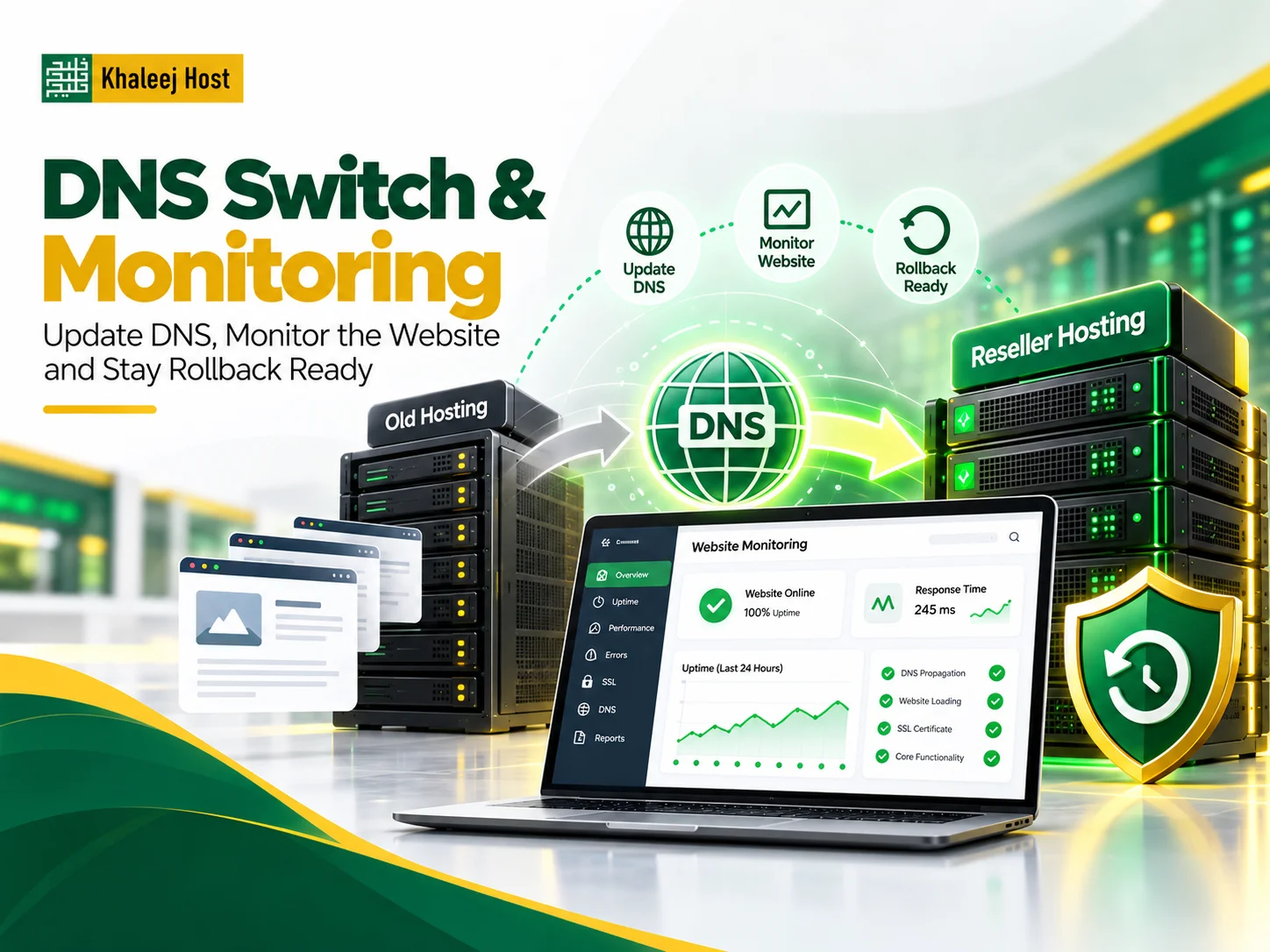
Step 13: Update DNS
Once the new website has passed testing, update the DNS records or nameservers.
Depending on your setup, you may change:
- A record
- AAAA record
- Nameservers
- CNAME records
- MX records
Do not change DNS until the new website and required services are ready.
After the change, monitor the domain from different networks and locations.
Step 14: Monitor the Website After DNS Changes
DNS changes do not necessarily reach every visitor at exactly the same time.
During the transition, some users may still reach the old server while others reach the new one.
Monitor:
- Website availability
- SSL
- Forms
- Login
- Database activity
- DNS records
- Server errors
- Resource usage
Keep the old hosting environment active until you are confident the migration is complete.
Step 15: Check Email Again
After DNS changes, verify that email continues working.
Send test messages:
- From the client to an external mailbox
- From an external mailbox to the client
- Between client mailboxes where relevant
Check that messages are being delivered correctly.
Also verify SPF, DKIM, and DMARC records if they are part of the client’s email configuration.
Step 16: Check SEO After Migration
A hosting migration can affect SEO if important technical settings are accidentally changed.
Check:
- HTTPS
- Canonical URLs
- Robots.txt
- XML sitemap
- Redirects
- 404 pages
- Internal links
- Meta information
- Website accessibility
- Search engine crawlability
Do not change the website structure unnecessarily during a hosting migration.
If the goal is only to change hosting, keep the website architecture and URLs as consistent as possible.
Step 17: Keep the Old Hosting Active Temporarily
Do not immediately cancel the old hosting account.
Keep it available during the transition so you have a fallback if a serious issue appears.
The exact retention period depends on the website and migration circumstances.
For important client websites, allowing enough time to confirm DNS, email, database, and website stability is more important than saving a small amount on overlapping hosting costs.
What Can Cause Downtime During Migration?
Several common issues can create downtime.
DNS Errors
Incorrect A records or nameservers can prevent visitors from reaching the website.
Missing Website Files
If important files were not transferred, the website may display errors or incomplete pages.
Database Problems
Incorrect database credentials or an incomplete import can cause connection errors.
SSL Issues
If SSL is not configured correctly, visitors may see security warnings.
Email Configuration Errors
Incorrect MX records can interrupt business email.
Incompatible PHP Versions
A website may stop working if the new server uses an incompatible PHP version.
Missing PHP Extensions
Some applications require specific PHP extensions.
Incorrect File Permissions
Incorrect permissions can prevent scripts or uploads from working.
Unconfigured Cron Jobs
Scheduled tasks may stop working after migration if cron jobs are not recreated.
DNS Propagation
Different users may reach different servers temporarily because of DNS caching.
How to Migrate WordPress to Reseller Hosting
WordPress migrations usually involve moving both files and the database.
A simplified process is:
- Backup the WordPress files.
- Export the database.
- Create the new hosting account.
- Upload WordPress files.
- Create the new database.
- Import the database.
- Update database credentials.
- Configure SSL.
- Test the website.
- Update DNS.
- Check the website again.
Also review:
- Permalinks
- Plugins
- Themes
- Media files
- Admin login
- Contact forms
- Caching
- Redirects
If the website uses ecommerce functionality, complete a final database sync before switching traffic.
How to Migrate Multiple Client Websites
If you manage several websites through reseller hosting, do not migrate everything at once unless you have a strong reason to do so.
A better approach is to create a migration schedule.
For example:
Phase 1: Preparation
Document all client websites and their requirements.
Phase 2: Test Migration
Move one lower-risk website first.
Phase 3: Review
Identify technical issues and improve the migration process.
Phase 4: Client Migrations
Move remaining websites in controlled batches.
Phase 5: Verification
Check each website, email service, DNS, SSL, and database.
This creates a repeatable migration process for your agency or hosting business.
How to Communicate With Clients During Migration
Technical preparation is important, but client communication matters too.
Before migration, tell clients:
- Why the migration is happening
- When it is scheduled
- Whether they need to do anything
- Whether email will be affected
- What they should avoid during the migration
- How they can report an issue
For ecommerce or database-driven websites, you may need to ask clients not to make major content or order changes during the final migration window.
Clear communication reduces confusion and unnecessary support requests.
Common Migration Mistakes to Avoid
Changing DNS Too Early
Do not point the domain to the new server before testing the new website.
Forgetting Email
Website files are only one part of a domain’s hosting setup.
Skipping the Final Database Sync
Active websites can continue receiving new data after the first backup.
Cancelling the Old Hosting Immediately
Keep the old environment available until the migration has been verified.
Changing Too Many Things at Once
Avoid redesigning the website, changing URLs, upgrading every plugin, and migrating hosting simultaneously unless necessary.
Not Testing Forms
A website may look fine while contact forms silently fail.
Ignoring Cron Jobs
Scheduled backups, emails, reports, and other automated tasks may stop working after migration.
A Website Migration Checklist
Before migration:
- Record DNS settings
- Record email configuration
- Check PHP and database versions
- Create full backup
- Prepare new reseller account
- Lower DNS TTL where appropriate
During migration:
- Transfer website files
- Transfer database
- Recreate email accounts
- Configure SSL
- Recreate cron jobs
- Test the new website
- Perform final database sync
After migration:
- Update DNS
- Test website
- Test email
- Check SSL
- Check forms
- Check redirects
- Check SEO settings
- Monitor errors
- Keep old hosting temporarily
How Reseller Hosting Can Make Client Migrations Easier
When you manage multiple client websites, having a structured reseller hosting environment can simplify account creation and organization.
Each client can have a separate hosting account with its own resources and credentials.
You can also establish a repeatable migration process instead of treating every website move as a completely new project.
If you are still evaluating whether reseller hosting fits your business, see Reseller Hosting for Web Design Agencies in UAE.
What If Something Goes Wrong After Migration?
Do not immediately delete the old hosting account.
First identify whether the problem is related to:
- DNS
- Website files
- Database
- PHP
- SSL
- Permissions
- Third-party integrations
If the issue cannot be resolved quickly and the old website is still available, you may need to temporarily route traffic back while fixing the new environment.
This is why a rollback plan should be part of every important migration.
Frequently Asked Questions
Can I migrate a website to reseller hosting without downtime?
You can often achieve little or no noticeable downtime with careful planning, but the result depends on the website, DNS configuration, database activity, hosting environments, and migration method.
How long does a website migration take?
The time depends on website size, database size, email requirements, server compatibility, and the migration method. A simple website may take much less time than an ecommerce platform with large databases and active transactions.
Should I change DNS before migrating the website?
No. Prepare and test the website on the new hosting environment before changing public DNS whenever possible.
Will changing hosting affect SEO?
A hosting migration does not automatically cause SEO problems. However, incorrect redirects, SSL issues, inaccessible pages, changed URLs, robots.txt problems, or downtime can create technical SEO issues.
What happens to email when I migrate hosting?
It depends on where the domain’s email is hosted. If email is moving with the website, mailboxes and DNS records need to be migrated correctly. If email is hosted separately, preserve the existing MX and related records.
Should I keep my old hosting account after migration?
Yes, it is generally safer to keep the old hosting environment temporarily until the new website, DNS, email, and other services have been verified.
How do I migrate WordPress without losing data?
Create a complete backup, transfer the files and database, test the new website, perform a final database sync if the site is active, and change DNS only after the new environment is ready.
Can a hosting provider help with website migration?
Many providers offer migration assistance, but the exact service depends on the provider and hosting plan. Ask what is included, which websites are supported, and whether email and databases are included.
Conclusion
Moving websites to reseller hosting does not need to be a stressful process.
The most important step is to prepare the new hosting environment before changing DNS.
Create backups, transfer files and databases, configure email and SSL, test the website, perform a final data sync where necessary, and keep the old hosting environment available during the transition.
For agencies and hosting businesses managing multiple clients, a documented migration process can make future website moves faster and more consistent.
The goal is not simply to move the website.
The goal is to move it without losing data, breaking email, damaging SEO, or creating unnecessary disruption for the client.