

A professional business email uses your own domain, such as info@example.ae. It gives your business control of addresses and account access as staff change. To set one up, choose an email provider, publish the DNS records it supplies, and test delivery both ways before moving existing mail.
Setting up a professional business email UAE customers trust is not complicated. Below is the exact process our team at Khaleej Host follows when we set up email for new businesses, including the technical part most guides skip.
Setup steps
Why a Domain Email Matters
Your email address is part of your brand. A domain email builds trust before anyone reads your message, keeps your brand in front of customers every time you write, and lands in the inbox more reliably when it is set up correctly. It also stays with the company: when a staff member leaves, the mailbox and its history stay with you, not in someone’s personal account.
Step 1: Get Your Domain
Your email uses your domain name, so that comes first. Keep it short, easy to spell and free of numbers. For a UAE business, a .ae domain shows customers you are local, and many companies register the .com as well to protect the brand. If you already have a website, you can use the same domain.
Step 2: Choose Where Your Email Lives
| Option | Best for | Keep in mind |
|---|---|---|
| Email with your hosting | Small teams that want everything in one place | Usually the lowest cost; check mailbox size and spam filtering |
| Google Workspace | Teams already using Gmail, Docs and Drive | Paid per user per month |
| Microsoft 365 | Teams that live in Outlook, Word and Excel | Paid per user per month |
For most small UAE businesses, email that comes with your hosting is enough and keeps costs down. If your team already works in Google or Microsoft tools, their email suites make sense. You can always move later.
Step 3: Create the Right Addresses
Start with two or three addresses and add more when you need them:
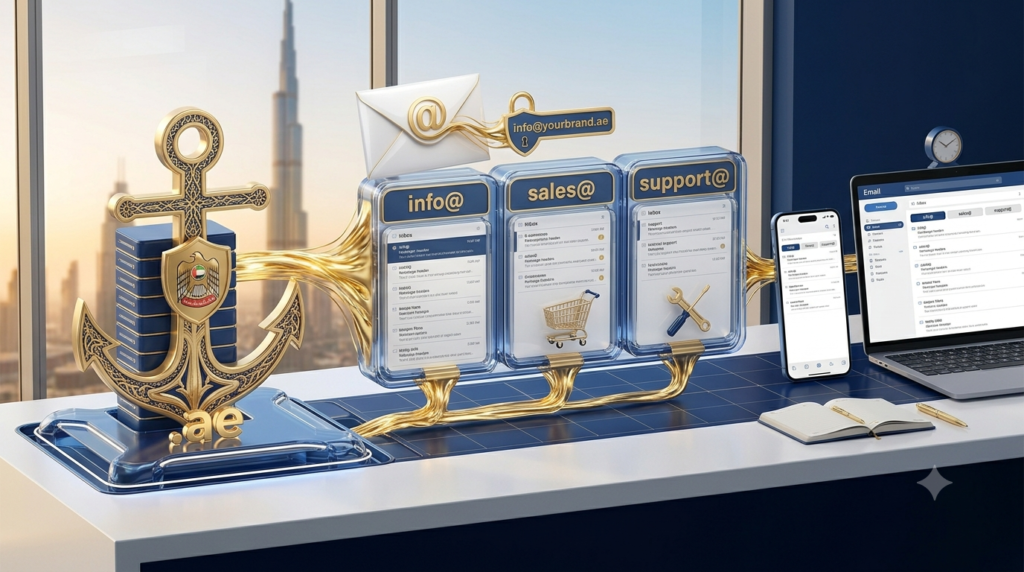
- info@ for general enquiries on your website and business cards
- sales@ or support@ for the team that answers customers
- name@ for each person, so customers know who they are dealing with
Too many unused addresses just collect spam, so keep the list short.
Step 4: Add the DNS Records That Keep You Out of Spam
Publish the MX and authentication records your provider specifies. Authentication helps receiving systems verify messages. Inbox placement also depends on factors such as sender reputation, sending behaviour and recipient preferences.
| DNS record | What it does | Why it matters |
|---|---|---|
| MX | Tells the internet which server receives your email | Without it, you get no email |
| SPF | Lists the servers allowed to send email for your domain | Stops others sending email as you |
| DKIM | Adds a digital signature to every email | Proves the email was not changed in transit |
| DMARC | Tells receivers what to do if SPF or DKIM fail | Protects your brand and improves inbox placement |
Gmail and Yahoo now expect senders to have these records in place; Google lists them in its email sender guidelines. On our email plans we set them up for you, so you do not have to touch DNS yourself.
Also turn on two-factor authentication for every mailbox and use strong, unique passwords.
Step 5: Connect Email to Your Phone and Laptop
Once the mailboxes exist, add them to the Outlook or Gmail app on your phone, your desktop email client, or simply use webmail in the browser. Use IMAP so messages stay in sync across devices. Send a test email to a Gmail and an Outlook address to confirm everything arrives in the inbox.
Step 6: Keep It Organised
A professional email system is also about daily habits. Create folders for clients, orders and support, set filters to sort incoming mail, add a simple signature with your name, role, phone number and website, and reply within a working day.
Common Mistakes to Avoid
- keeping a free Gmail address on invoices and the website
- skipping SPF, DKIM and DMARC, then wondering why emails land in spam
- sharing one password across the whole team
- creating dozens of addresses nobody checks
- letting the domain expire, which takes your email down with it
A Small Change With a Big Effect
Consider a small service business moving from a personal inbox to a domain mailbox. It can route enquiries to a shared inbox and authenticate outgoing quotes. Test delivery with external accounts and keep the old address monitored during the transition.
Professional Business Email UAE Setup With Khaleej Host
With Khaleej Host you get domain registration, business email hosting, SPF, DKIM and DMARC set up correctly, help connecting your devices, and support when something does not work. Everything sits in one account. Contact us if you would like us to set it up for you.
Verify Professional Business Email Before You Cut Over
Make an inventory of every sender that uses the domain. This can include the mailbox provider, CRM, invoice platform, helpdesk and website forms. Save the current MX and authentication records. Confirm which mailboxes are real accounts, which are aliases, and who owns access to shared addresses.
Use the record values supplied by your provider. Keep one SPF record at each relevant hostname and review every authorised sending service before consolidating records. Use the provider’s DKIM selector and check whether the public key resolves. Review DMARC reports before enforcing stricter policy and verify alignment for legitimate third-party senders. Refer to Google’s sender guidelines.
| Check | How to verify it |
|---|---|
| Inbound mail | Send from an external account to each important address. |
| Outbound mail | Send from the domain to a test account and inspect authentication results. |
| Shared inbox | Confirm replies show the intended business address and reach the right team. |
| Web forms | Submit a labelled enquiry and verify receipt, reply-to address and delivery logs. |
| Migration | Check old folders and saved contacts, then confirm who can recover an account. |
Move Mailboxes Without Losing Enquiries
Before changing MX, create and test the new mailboxes and decide how old messages, contacts and calendars will be copied. Keep access to the old provider through the transition, subject to your retention policy. During cutover, test sending and receiving from an external account and check that forwarded mail or CRM sending still behaves as expected.
Give each person their own account where possible and use provider-supported delegation for a shared inbox. Turn on multifactor authentication and keep recovery ownership with the business. Confirm that website backups and email backups are handled separately. For domain services and setup options, see KhaleejHost business email and the website HTTPS guide.
Check Every Sender Before Changing DMARC
Send test mail from each legitimate source, including the mailbox, website form, invoicing platform and any bulk email tool. Review the message headers for SPF and DKIM results and DMARC alignment. Keep a record of which vendor owns each selector or sending domain. This makes it easier to remove a service when a contract ends without breaking another one.
If authentication passes but delivery still suffers, check recent bounces, reputation, sending volume and the provider’s logs. Compare direct delivery with forwarding because forwarding can change the signals a recipient receives. Make sure the business owns the domain account and knows who can edit DNS. Have the team test replies as well as new messages before retiring the old mailbox.
A Business Email Migration Plan for an Existing Domain
List the mailboxes, aliases, groups, shared calendars, contacts and automated senders using the domain. Confirm who owns the domain registrar account and where DNS is managed. Make sure you can reach a recovery contact even if access to the old mail service is interrupted. Keep the inventory with the business so the next provider or team member can use it.
Create the new accounts before the switch. Decide who can access shared mail, who can send as each address and how former staff mailboxes are handled. If you are transferring existing messages, run a test for one account first. Check inbox folders, sent messages and attachments before copying the rest. Use an approved migration method and keep old access available through the agreed transition period.
Export or record the current MX, SPF, DKIM and DMARC settings before changing them. Use the values supplied by the new mail provider. Preserve unrelated DNS records for the website and other services. Keep the old mailbox accessible until you have verified new messages are arriving where expected. Some sending systems can continue using cached routing records while changes are being adopted.
Once MX changes, send tests from more than one external mailbox. Test from the new professional business email back to those accounts and inspect authentication results. Confirm the team can reply from the right address and that enquiries routed through a website form arrive in the correct inbox. Verify the normal workflow before removing the old configuration.
Cutover Checklist for a UAE Business Email Setup
| Stage | What to verify |
|---|---|
| Before cutover | Inventory, access recovery, domain ownership and saved DNS records |
| Pilot | One migrated mailbox, a shared inbox and a mobile device test |
| DNS change | Provider-supplied MX and sender authentication settings |
| Delivery test | Inbound and outbound mail, authentication and a website form message |
| Handover | Recovery contact, sending services, licence owners and support details |
Troubleshoot Delivery in the Right Order
Start by identifying which system sent the message. A quote sent from a staff mailbox may use different infrastructure from an invoice or a website form. Send a labelled test from each service and inspect the recipient’s message headers. A test from one mailbox does not establish that the website or CRM authenticates in the same way.
Check SPF and DKIM results, then check DMARC alignment against the visible From domain. An SPF or DKIM pass for a different domain does not necessarily satisfy DMARC alignment. Review the provider’s domain authentication instructions before changing settings. If several services legitimately send as your domain, confirm their configuration before moving from monitoring to an enforcement policy.
If the test passes authentication but is still delayed or rejected, check the bounce text and the sending service logs. Record when the message was sent and which recipient provider rejected it. Compare direct sending with forwarding and consider changes in volume or account behaviour. Google’s email sender guidelines cover authentication and other delivery factors.
For an enquiry form, verify the message uses the authenticated business address as the sender where your provider recommends it. The visitor address can usually be used as the reply-to value. Test how the recipient sees the message and whether the reply goes to the visitor. This keeps replies practical without assuming your website can authenticate mail as someone else’s domain.
Make the Setup Easy to Maintain After Launch
Keep an ownership note covering the domain, DNS, email provider, billing and shared inboxes. Assign a backup administrator and turn on multifactor authentication for accounts that can manage users or DNS. Decide how staff access is removed when someone leaves. Where the provider supports it, give users individual accounts and delegate shared mailbox access.
Set a simple review after staff or software changes. If a new CRM, helpdesk or invoicing service starts sending, add it to the inventory and test its authentication. If a service is retired, verify it is no longer needed before removing its DNS entries. Keep selectors and provider records labelled so another administrator can trace which service owns them.
Review the delivery test after the first week. Confirm that routine messages, replies, calendar invites and website enquiries are reaching the right people. Look for bounces or missed contacts and check the message headers for any recurring issue. Record which provider owns each part of the process so support tickets go to the right team.
If the business runs a website and email with different providers, keep the website and mail migration plans separate. A web-host switch does not automatically require changing MX. If you need a website move, use the hosting migration checklist to coordinate DNS and backups with the team responsible for mail.
Protect Mailbox Access During Staff and Provider Changes
Keep the registrar, mail administrator and billing accounts under the business’s control. Use recovery contacts that the business can still access if its main mail service is unavailable. Store the provider support route and a short list of DNS records in an approved internal location. Give administrative rights only to staff who need them.
When a colleague leaves, identify any shared inbox, forwarding rule, calendar or automated sending service tied to their account. Transfer the needed ownership using the provider’s supported process. Review active devices and access grants as part of the handover. Test normal replies from shared addresses after the change so customers keep reaching the team.
Decide how the business will find older messages if a mailbox closes or a migration fails. Review the provider’s retention and export settings and any policy that applies to the messages. Test recovery on a non-critical example before relying on it. A working website backup does not establish that mail, contacts or calendars can be restored.
If there is an unexpected delivery problem, keep a copy of the bounce or message headers and note which address and time were affected. A support team can often use those details to distinguish routing errors from authentication issues. Keep a second external mailbox for test messages during a migration. Verify the most important customer addresses before declaring the change complete.
Conclusion
A professional business email is one of the cheapest ways to look established in the UAE. Get a domain, choose where your email lives, create a few clear addresses, add the security records and connect your devices. Do it once, do it properly, and every email you send builds trust.
FAQs
Why is a business email better than Gmail?
It looks more professional, builds trust, keeps your brand visible and stays with the company when staff leave.
Can I have several business email addresses?
Yes. Most businesses use info@, sales@ or support@ and a personal address for each team member.
Is .ae better than .com for a business email in the UAE?
If your customers are mainly in the UAE, .ae builds more local trust. Many businesses register both and use the .ae for email.
Why do my business emails go to spam?
Usually because SPF, DKIM or DMARC records are missing or wrong. Adding these records correctly fixes most deliverability problems.
Do I need technical skills to set up a business email?
No. With a good provider the setup is simple, and Khaleej Host can configure the mailboxes and DNS records for you.