

What Is an SSL Certificate?
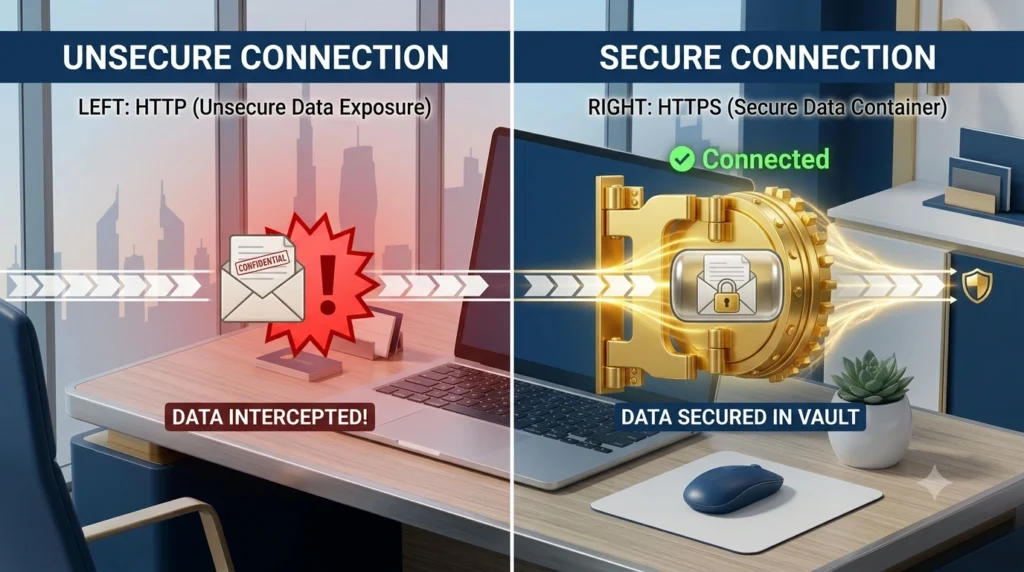
An SSL certificate is a digital certificate that lets a browser verify a website’s hostname and establish an encrypted HTTPS connection. Modern browsers use TLS. The older term SSL survives in hosting dashboards and purchase pages. Any UAE business website that accepts enquiries, logins or payments should serve those pages over HTTPS. The same applies to a simple public brochure site.
A certificate covers one or more names. The browser checks the requested hostname against the certificate, verifies the certificate chain and checks that the certificate is currently valid. A valid connection protects data in transit. It does not prove the site owner is honest, and it does not replace software patches or backups.
Which SSL Certificate Does Your Site Need?
| Option | What to verify |
|---|---|
| Domain validation | The issuer verifies control of the domain. Confirm every hostname your site uses. |
| Organisation or extended validation | The issuer performs additional identity checks. Choose it if a contractual or business requirement calls for it. |
| Wildcard | A wildcard such as *.example.com typically covers one subdomain level. Check the apex name separately. |
| Multi-domain | The certificate can list several names. Confirm every name needed for public traffic. |
A trusted free certificate can serve HTTPS. Check Let’s Encrypt’s certificate guidance and your hosting plan’s renewal options before buying a certificate solely because it is marketed as more secure. Compare KhaleejHost web hosting options and confirm which hostnames, renewals and support the chosen plan covers.
Four Steps to Install and Verify HTTPS
Issue a certificate for every public hostname
List the public domain names, confirm ownership and issue a trusted certificate that covers them.
Install and test the certificate
Install at the server or CDN termination point, confirm origin encryption where applicable, and test the full certificate chain.
Switch website URLs and redirects to HTTPS
Update insecure assets, confirm canonical URLs and redirect each HTTP URL to its HTTPS equivalent.
Monitor renewal and test again
Set up renewal and alerts, test critical pages and check expiry for all public names.
Confirm Hostnames, DNS and Renewal
List the apex domain, www address, any store or login subdomain, and hostnames that redirect. The browser connects over TLS before it receives an HTTPS redirect, so a redirecting name still needs a valid certificate. If validation fails, check DNS resolution and the chosen validation method. When using DNS validation, follow the issuer’s instructions for the exact challenge record and remove stale records when the issuer says they are no longer needed.
If your host automates issuance, confirm it also renews and applies new certificates to the live endpoint. A renewed file on a server is insufficient if the application, reverse proxy or CDN is still serving the old certificate. Check the public certificate dates after deployment and set up an expiry alert for the domains your business depends on.
Fix Certificate Errors and Mixed Content Separately
If the browser rejects HTTPS entirely, inspect the certificate first. Check the hostname, dates and chain from another device or network. If you use a CDN or load balancer, test the public connection and check the configuration between that service and your origin. Use certificate validation on the origin connection wherever supported.
If HTTPS connects but the browser blocks images, scripts or fonts, check Developer Tools for mixed-content messages. Replace HTTP asset URLs in the theme, content, stylesheet or integration. Clear relevant caches and test a fresh session. Recheck important forms, payment redirects and sign-in pages before calling the migration complete.
During an HTTP-to-HTTPS migration, redirect each old path to the matching HTTPS path and update internal links, canonical URLs and the sitemap. Preserve the paths and query parameters that are needed for site behaviour. Check your small-business hosting checklist and keep an owner assigned to DNS, certificates and recovery.
A Practical Renewal Incident Checklist
When a warning appears, record the hostname, browser error, observed time and whether it affects more than one device. Compare the issue on the main domain, www and any subdomain used for transactions. Check the current certificate and the certificate the provider expects the site to serve. If they differ, ask where TLS terminates and which service needs the certificate deployed.
Once the connection works, test both a public page and an action that sends data, such as a form. Confirm analytics and payment callbacks still work on HTTPS. Keep screenshots or logs of the original warning and resolution so the next person can check what changed. If an expired certificate took your site offline, use the peak-hour website downtime guide to plan alerts and escalation.
How to Tell Which HTTPS Layer Failed
Start with the error a customer saw. A hostname mismatch often means the requested domain is missing from the certificate or the wrong virtual host answered. An expiry warning points to the certificate actually served, which may be different from the copy listed in your dashboard. A trust-chain error may occur on some devices even when others can connect. Record the exact error and the hostname before changing settings.
If a site uses a CDN, check where the public TLS connection ends. The origin may use a different certificate. Keep validation enabled and confirm that the hostname used between the CDN and origin matches the origin configuration. Avoid a setup that encrypts only the first leg if the application handles private data. After a fix, test both the cacheable homepage and an uncached action such as a contact form.
Assign one owner for renewal and one backup contact. Record which tool issues the certificate and which endpoint actually serves it. If the certificate covers multiple names, check those names after changing DNS, moving hosting or adding a store subdomain. Include the alert recipient, the first diagnostic steps and the support route in your hosting handover notes.
For a small team, a practical check is to open the apex, www and key subdomain from a fresh browser session, submit a labelled form and confirm that the final URL remains secure. Then check the certificate expiry date at the endpoint. If you run several sites, automate expiry monitoring and review the alert route after staff changes.
Frequently Asked Questions
What does an SSL certificate do?
It lets browsers authenticate the server hostname and establish an encrypted HTTPS connection using TLS. It does not scan the site for malware or prove the business is trustworthy.
Do small websites need HTTPS?
Yes. HTTPS protects traffic in transit and prevents browser warnings associated with plain HTTP. Include every public hostname visitors use, including any redirecting hostname.
Is a free SSL certificate enough?
A trusted domain-validated certificate is generally sufficient for HTTPS when it covers the right names and renews reliably. Choose higher validation only if you need its identity checks or a specific requirement calls for it.
Why does a site still show a warning after installing a certificate?
Check the expiry date, covered hostnames, trust chain and CDN origin connection. If HTTPS works but a page reports mixed content, update insecure asset requests separately.
Does HTTPS protect a website against hacking?
HTTPS protects traffic in transit. Keep software patched, restrict access, and maintain usable backups and monitoring to manage other risks.